

Create a Favicon 2026: The Complete Guide
A favicon is the small icon that appears in the browser tab next to the page title. It may be tiny, but its impact is enormous: Professional favicons strengthen brand perception, improve user orientation, and increase website recognition.
In this guide, we'll show you how to create a professional favicon in minutes and implement it correctly on your website.
What is a Favicon and Why is it Important?
The word "favicon" combines "favorite" and "icon". Originally, Internet Explorer displayed these icons in the favorites list. Today, favicons appear in multiple places:
- In the browser tab next to the page title
- In the bookmarks list
- In the browser history
- On smartphone home screens (as app icons)
- In search results (on some browsers)
A missing or generic favicon looks unprofessional and makes it difficult for users to find your website among many open tabs.
The Right Favicon Sizes 2026
Modern websites require favicons in multiple sizes for different platforms:
Desktop Browsers:
- 16x16 pixels (classic favicon)
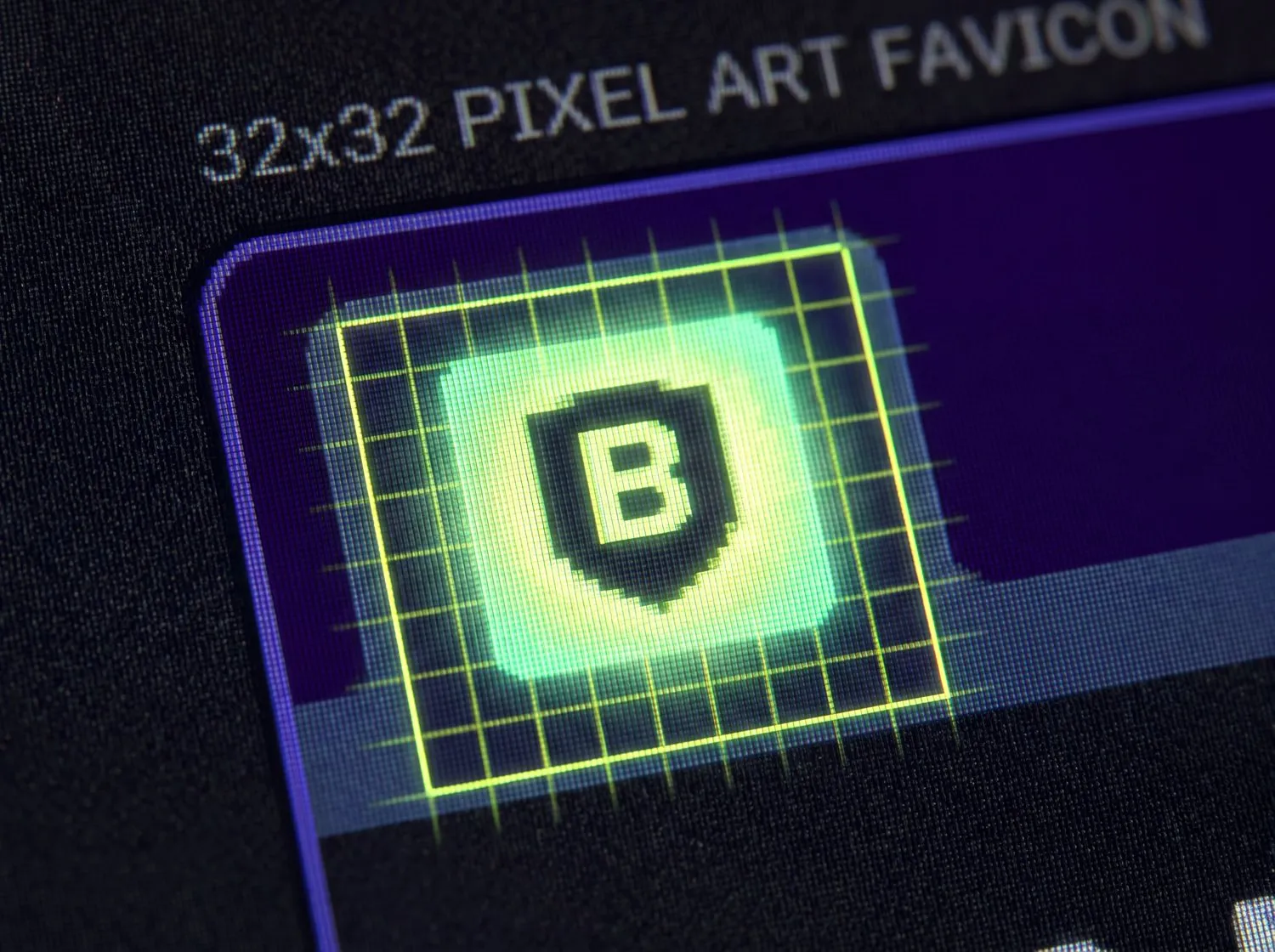
- 32x32 pixels (Retina displays)
- 48x48 pixels (Windows shortcuts)
Mobile Devices:
- 180x180 pixels (Apple Touch Icon for iOS)
- 192x192 pixels (Android Chrome)
- 512x512 pixels (Android home screen, high resolution)
Recommendation: Use a favicon generator that automatically creates all required sizes. This ensures your icon looks optimal on all platforms.
Create a Favicon in 5 Steps
Step 1: Create the Design
Your favicon should be simple and recognizable. At 16x16 pixels, details are barely visible.
Design Tips:
- Use your logo or its initials
- Choose high contrast (readable at small sizes)
- Avoid too many details
- Test the design at different sizes
Recommended Tools:
- Figma (free, professional)
- Canva (easy, templates available)
- Adobe Illustrator (for existing logos)
Create your design in high resolution first (at least 512x512 pixels) so you can scale it down later.
Step 2: Convert the Format
Favicons can exist in various formats:
.ico Format:
- Classic favicon format
- Contains multiple sizes in one file
- Supported by all browsers
.png Format:
- Modern and widely used
- Supports transparency
- Ideal for mobile devices
.svg Format:
- Vector-based, scales perfectly
- Not yet supported by all browsers
- Ideal for modern websites
Recommendation: Use both .ico (for compatibility) and .png (for mobile devices).
Conversion Tools:
- Favicon.io - Free, creates all formats
- RealFaviconGenerator.net - Comprehensive, with code generator
- CloudConvert - For manual conversion
Step 3: Implement on Your Website
Place the favicon files in your website's root directory or in an /icons/ folder.
HTML code for the `<head>` section:
<!-- Classic Favicon -->
<link rel="icon" type="image/x-icon" href="/favicon.ico">

<!-- PNG Favicons for different sizes -->
<link rel="icon" type="image/png" sizes="16x16" href="/favicon-16x16.png">
<link rel="icon" type="image/png" sizes="32x32" href="/favicon-32x32.png">

<!-- Apple Touch Icon -->
<link rel="apple-touch-icon" sizes="180x180" href="/apple-touch-icon.png">

<!-- Android Chrome -->
<link rel="icon" type="image/png" sizes="192x192" href="/android-chrome-192x192.png">
<link rel="icon" type="image/png" sizes="512x512" href="/android-chrome-512x512.png">

<!-- Optional: SVG Favicon -->
<link rel="icon" type="image/svg+xml" href="/favicon.svg">
Important: The order of the links matters. Browsers use the first matching icon.
Step 4: Test
Test your favicon on different platforms:
Desktop:
- Chrome, Firefox, Safari, Edge
- Normal and Dark Mode
- Standard and Retina displays
Mobile:
- iOS Safari (add the website to home screen)
- Android Chrome (add the website to home screen)
Testing Tools:
- RealFaviconGenerator Checker
- Browser Developer Tools (check Console for errors)
Step 5: Clear Browser Cache
After uploading, you might not see the new favicon immediately. Browsers cache favicons aggressively.
Clear cache:
- Chrome/Edge: Ctrl + Shift + Delete (Windows) / Cmd + Shift + Delete (Mac)
- Firefox: Ctrl + Shift + Delete (Windows) / Cmd + Shift + Delete (Mac)
- Safari: Cmd + Option + E
Alternatively, open the website in incognito mode for testing.
Best Tools for Creating Favicons
Favicon.io
- Free: Yes
- Features: Text to favicon, emoji to favicon, image to favicon
- Special: Automatically creates all required sizes including HTML code
- Link: favicon.io
RealFaviconGenerator
- Free: Yes
- Features: Most comprehensive generator, preview for all platforms
- Special: Generates
manifest.jsonfor Progressive Web Apps - Link: realfavicongenerator.net
Canva
- Free: Basic version yes
- Features: Design tool with favicon templates
- Special: Ideal for non-designers
- Link: canva.com
Common Mistakes to Avoid
Mistake 1: Only creating a favicon.ico Modern websites require multiple sizes for different platforms. A single .ico file is not enough.
Mistake 2: Too detailed design At 16x16 pixels, fine details are not recognizable. Keep the design simple and high-contrast.
Mistake 3: Wrong file paths Make sure the paths in your HTML code are correct. Relative paths are often safer than absolute ones.
Mistake 4: Favicon not in root directory Some browsers automatically look for /favicon.ico in the root. Place at least this file there.
Mistake 5: Not considering cache Always test in incognito mode or after clearing the browser cache.
FAQs
What size should my favicon be? Create your design in at least 512x512 pixels and scale it down. Use a generator that creates all required sizes (16x16, 32x32, 180x180, 192x192, 512x512).
Do I need an .ico file or is .png enough? For best compatibility, use both formats. .ico for classic browsers, .png for mobile devices and modern browsers.
Why isn't my new favicon showing? Browsers cache favicons aggressively. Clear the cache (Ctrl/Cmd + Shift + Delete) or test in incognito mode.
Can I use an animated favicon? Technically yes (as .gif), but it's not supported by all browsers and can be distracting. Static favicons are more professional.
Do I need to create a manifest.json for my favicon? Only if you're developing a Progressive Web App (PWA). For normal websites, the HTML code in the <head> is sufficient.
Summary
Creating a professional favicon takes less than 30 minutes and significantly improves your website's perception. The key steps:
- Create a simple, high-contrast design (Figma, Canva)
- Generate multiple sizes (Favicon.io or RealFaviconGenerator)
- Upload files and insert HTML code
- Test on different platforms
- Clear browser cache for immediate feedback
Use free tools like Favicon.io or RealFaviconGenerator — they automatically create all required formats and provide the matching HTML code.
For professional support with web design and branding, contact GoldenWing Creative Studios. We create not just favicons, but complete visual identities.